
KomoDo - A Refreshingly Simple To-Do App from KDE
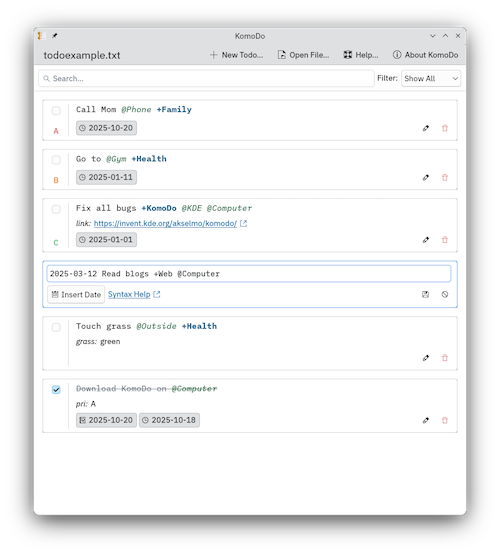
If you’re tired of bloated task managers, cloud lock-in, subscription models, or overly complex user interfaces, KomoDo is a breath of fresh air. Its focus is squarely on simplicity, local-first storage, and plain text, which immediately makes it appealing to users who value longevity and control over their data.
At its core, KomoDo is a plain-text to-do list application built around a simple idea: your tasks should live in a normal text file that you fully control. The application loads that file, parses it according to a defined syntax, and presents the results in a clean, readable interface.
I am currently using KomoDo with its task file stored locally on disk, but because it operates on a standard text file, there’s nothing preventing you from storing it on a local network resource such as a Samba share, NFS mount, or synced folder.
Why KomoDo Works So Well
One of KomoDo’s biggest strengths is its choice of storage format. Tasks are stored in a simple, human-readable text file, not a database or proprietary format. This has several practical advantages:
- You can edit your tasks in any text editor
- Syncing could potentially be handled however you like (rsync, Syncthing, Nextcloud, etc.)
- There is no risk of vendor lock-in or data loss due to application changes
You can open the task file outside the app, make edits, reload it, and KomoDo immediately reflects those changes. There is no hidden state, no background sync process, and no opaque metadata.
From a technical standpoint, this makes KomoDo extremely robust. Even if the application disappeared tomorrow, your task list would still be perfectly usable.
Minimal Interface, Maximum Focus
KomoDo’s interface is intentionally minimal, and that restraint works in its favour. There is very little visual noise, which keeps your attention on the tasks themselves rather than the tool managing them.
The application is fast, lightweight, and responsive. It does not try to be a project management suite, a calendar replacement, or a collaboration platform. When all you want is a to-do list, KomoDo stays out of the way and lets you work.
Despite the simplicity, it does its job exceptionally well, which is increasingly rare in modern desktop software.
Powerful Syntax (If You Want It)
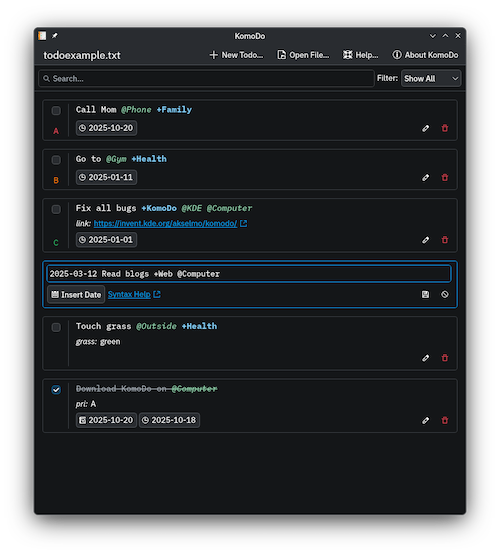
The order of elements matters, and once understood, the syntax becomes very natural:
Completion Priority Creation-Date Description
Here’s how it breaks down inside the text file:
x- Completion status (remove it to mark a task as incomplete)(A)- Priority, from A to Z (optional)- Completion Date -
YYYY-MM-DD(only if the task is completed and has a creation date) - Creation Date -
YYYY-MM-DD(optional, but recommended) - Description - The task text itself (mandatory)
+Project- Project tags (optional)@Context- Context tags (optional)key:value- Arbitrary metadata fields (optional)
Descriptions, project tags, contexts, and key:value pairs can be mixed freely, which allows you to scale from a simple list to a structured task system without changing tools or formats. The built-in Help button provides clear examples and documentation if you need a refresher.
This makes KomoDo suitable for both:
- Minimalists, who just want a clean task list
- Power users, who enjoy structured, scriptable workflows
In my own case, I don’t currently don’t use dates or project tags. I mostly use KomoDo as a straightforward task capture tool - a place to quickly write down things I need to get done - and it works perfectly well even without using the more advanced syntax.
Where KomoDo Could Improve
No application is perfect, and KomoDo does have a few areas where small changes could significantly improve usability.
Search Bar Placement
The search bar is located at the top of the window. While functional, it feels like it would be better placed at the bottom of the interface. Personally, I would replace the top search bar with a task entry field and button for adding new items.
Right now, adding a task requires clicking “+ New To-Do…”, which creates a new entry in the list that you then edit in place. This works, but it adds friction compared to a simple “type and press enter” workflow. For users who frequently capture tasks quickly, this feels slower than it needs to be.
Handling Completed Tasks
Completed tasks are shown at the bottom of the list with a strikethrough. Visually this is fine, but over time it can clutter the task file and make active tasks harder to scan.
An optional archive feature would be a welcome addition - for example, automatically moving completed items into a separate file such as tasks.old or allowing users to archive completed tasks out of the main list. For users who prefer to keep their active task list lean, this would improve long-term usability.
Availability on Android and macOS
KomoDo is currently Linux only. There’s no official Android or macOS version yet.
It would be great to see a mobile or cross-platform version, especially on macOS and Android, but it’s early days, as the app was only released a few months ago (August 2025). For now, Linux desktop users are the primary audience.
Final Thoughts
KomoDo is a fantastic example of the KDE philosophy done right: simple, open, and respectful of the user. It doesn’t try to replace your workflow - it adapts to it. By relying on plain text and local storage, it avoids many of the pitfalls of modern productivity software.
I genuinely appreciate the work the developer has put into this application, and I was happy to support the project by donating 50 euros.
If you value:
- Plain-text productivity
- Lightweight, native desktop applications
- Full ownership and portability of your data
…then KomoDo is absolutely worth a look. It may not have every feature under the sun, but what it does offer, it delivers cleanly, reliably, and without getting in your way - and sometimes, that’s exactly what you want.